 Caption Keeper
How to translate Microsoft Teams captions in real time
Following a fast meeting in a second language is hard, and captions help only if you can read them quickly enough. Translating each line as it is spoken closes that gap.
Option 1: Teams Premium live translated captions
Teams has its own live translated captions. You pick a translation language in the captions settings and Teams shows captions in that language. The feature is part of Teams Premium, so it is available only if your organization pays for it.
Option 2: free on-device translation with Caption Keeper
Caption Keeper adds a translation under every caption line in Teams on the web. It uses the translator built into Chrome, which runs on your computer, so the meeting is not sent to a translation server.
- Install Caption Keeper and join the meeting in Teams on the web in Chrome.
- Turn on live captions: More (…), Language and speech, Show live captions.
- In the Caption Keeper panel, click Translate. The first time, Chrome downloads the language model; this takes a moment.
- From then on each line is translated as it grows, in the language of your browser. You can pick another target language in Settings.
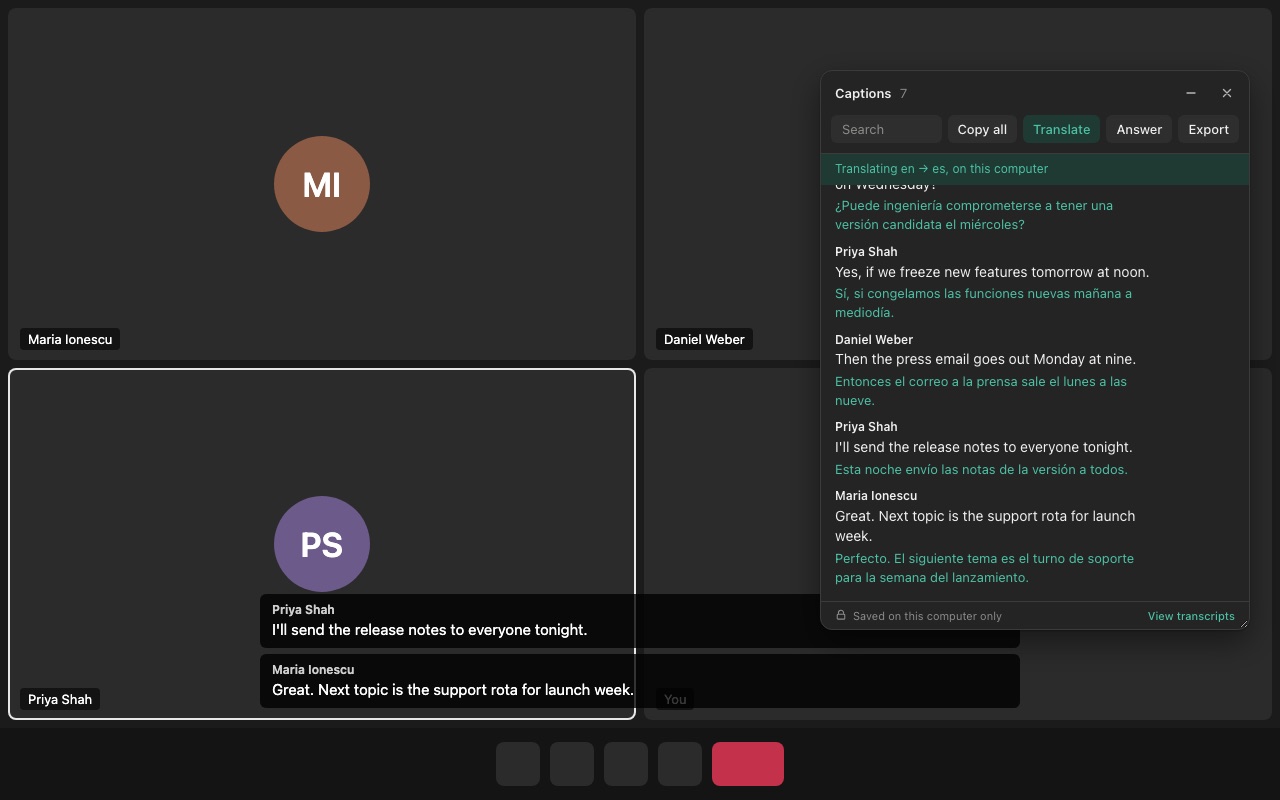
On-device translation needs a recent Chrome on a computer. If a language pair isn't available offline, the globe button on a line opens it in Google Translate or DeepL instead.
Tip: make sure the spoken language is right
Teams transcribes in the meeting's spoken language. If the speaker talks German while Teams expects English, both captions and translation will be wrong. Change it under Language and speech, Spoken language.
Try Caption Keeper
Free for Chrome and Edge. No account, and your transcripts stay on your computer.