 Caption Keeper
How to copy live captions in Microsoft Teams
Teams shows live captions at the bottom of the meeting, but you can't select them, copy them or scroll back to a line that already disappeared. If you want to paste a sentence into a translator, your notes or a ticket, you need another route.
Why you can't copy Teams captions
Captions are drawn as a temporary overlay. Teams blocks text selection on it and removes older lines as new ones arrive, so even a quick screenshot only catches the last two lines.
Option 1: the transcript, if your meeting has one
If someone started transcription (More, Record and transcribe, Start transcription), Teams keeps a transcript you can open during and after the meeting, and copy from. This depends on your organization's policy, and usually only the organizer or a presenter can start it. Guests and many personal accounts can't.
Option 2: copy captions directly with Caption Keeper
Caption Keeper is a free extension for Chrome and Edge. It reads the captions Teams shows you and lists every line in a panel next to the meeting, where normal selection works.
- Install Caption Keeper from the Chrome Web Store or Edge Add-ons.
- Join the meeting in Teams on the web, not the desktop app.
- Turn on live captions: More (…), Language and speech, Show live captions.
- The panel opens. Hover a line and click the copy button, or select any part of the text and press Ctrl+C (Cmd+C on a Mac).
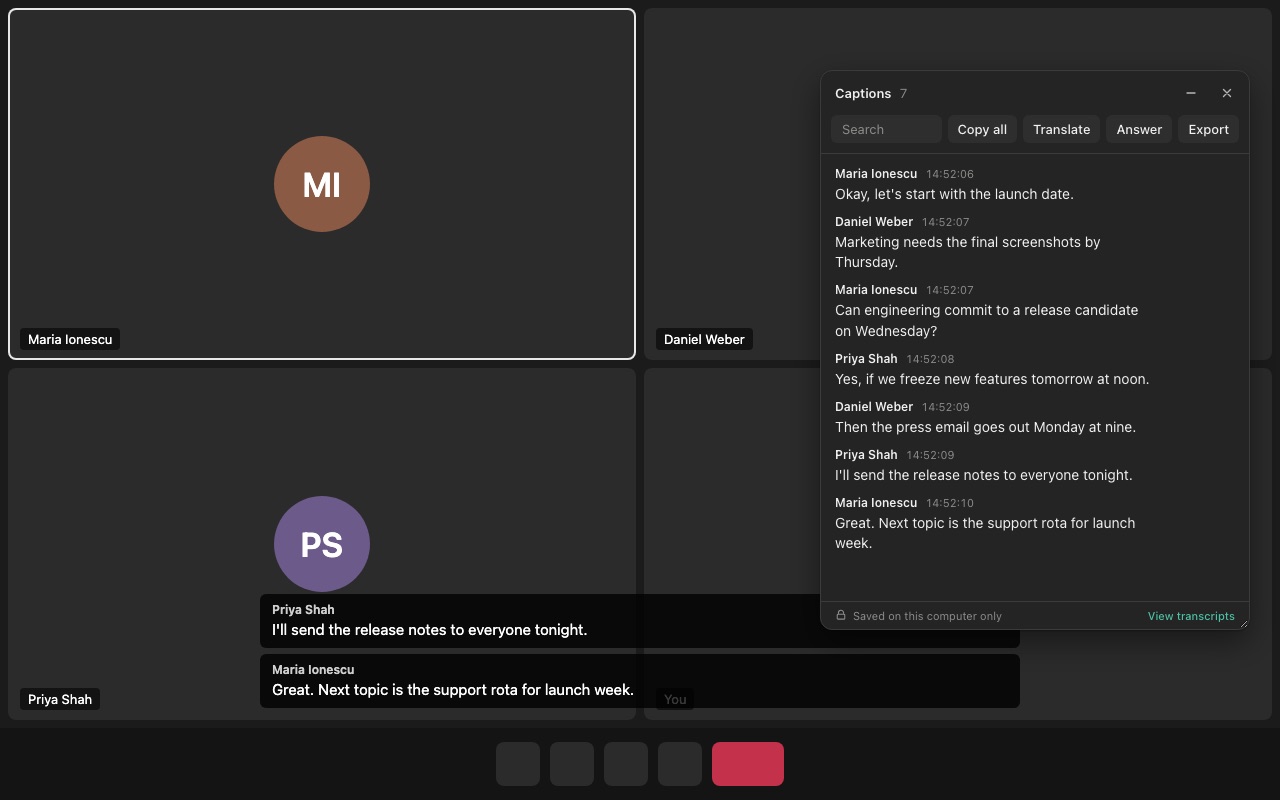
To copy the newest line without touching the mouse, press Alt+Shift+L (Ctrl+Shift+L on a Mac). Copy all copies the whole meeting with speaker names.
Captions can include confidential information. Follow your organization's rules about keeping meeting notes.
Try Caption Keeper
Free for Chrome and Edge. No account, and your transcripts stay on your computer.